Route cases created by Email-to-Case to specific groups of support agents, by using Case Origin or Priority values and Plauti Assign Match Rules.
If your organization uses Email-to-Case, you can route the resulting cases to specific groups of support agents. To do this, set the Case Origin or Priority on each Email-to-Case routing address, and then use that value in a Plauti Assign Match Rule.
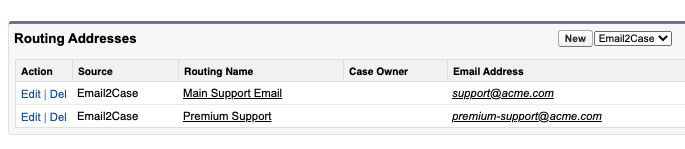
The steps below are shown based on an example scenario where a company has two support email addresses, support@acme.com and premium-support@acme.com. Both are set up as Routing Addresses in Email-to-Case. Cases sent to the Premium Support address need to be assigned by a specific Match Group.
1. Set a Priority or Origin on the routing address
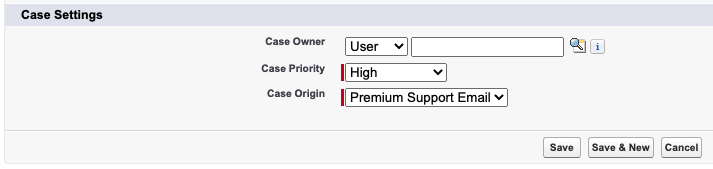
When you edit a routing address, the Case Priority and Case Origin options are at the bottom of the page. You can use either field in a Match Rule. This example uses Case Origin.
- Go to Salesforce Setup > Object Manager > Case > Fields & Relationships > Case Origin or Priority
- Add a new picklist value, for example
Premium Support Email, and Save - Still in Salesforce Setup, go to Email-to-Case > Routing Addresses
- Edit the email address that the Match Group should match on, in this case Premium Support
- Set a Case Priority and/or Case Origin. You can use either in the Match Rule later on.
In this example we will set Case Origin to Premium Support Email.
2. Create a Match Rule for the Priority or Origin
In Plauti Assign, go to Assign Setup > Match Groups.
Open or create the Match Group that should handle Premium Support cases.
On the 'Match Rules' tab, click Configure.
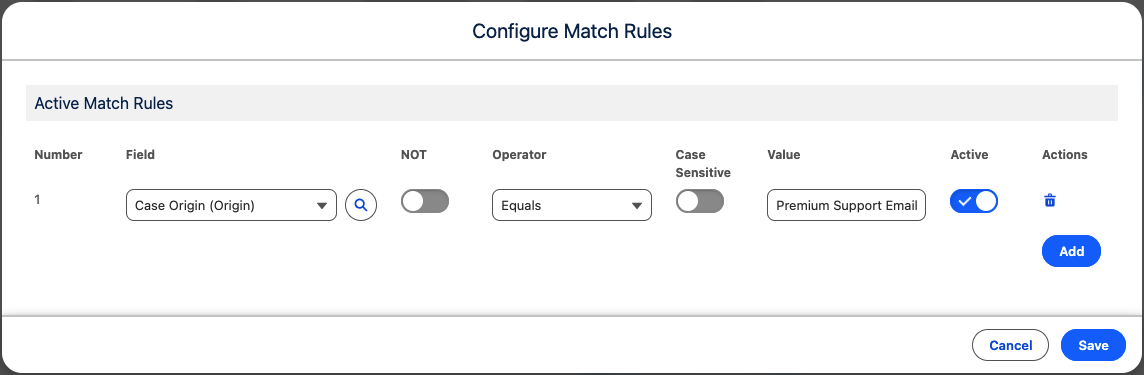
Add a Match Rule with these settings:
- Field:
Case OriginorPriority - Operator:
Equals - Value: the Origin or Priority value to match on, for example
Premium Support Email
- Field:
Click Save.
New cases created from emails to the Premium Support address are now assigned to the users in this Match Group.
To route other Email-to-Case addresses, repeat these steps with a different Case Origin or Priority value for each address, and have a different Match Group plus Match Rule for each value.
Check your Case Assignment Rules
If you are also using Salesforce Case Assignment Rules, cases may still end up with the default case owner. The Case Assignment Rules run after Plauti Assign and overwrite the owner, even when no rule entry matches the case.
To prevent this, see Native Record Assignment Rules.