The Search Index is available in the Premium and PDM editions.
When creating a search index, Plauti Deduplicate creates a key (hash) for every record in your object. The key is created based on fields that are defined in your scenario. Plauti Deduplicate uses this key to compare records. It is advised to create a search index when using custom fields in your scenario, and/or when working with our fuzzy matching methods. Having a search index improves results and scoring of duplicate records.
Plauti Deduplicate uses the Search Index to find potential duplicate records in Salesforce. This Search Index is a string of values and numbers which is created based on the scenarios that you have.
When searching with the Search Index, potential duplicates are returned. By default, about 15 records are returned. As a next step, the scenario calculates matching percentages for those 15 records. Every pair with matching percentages that are equal to, or higher than the defined threshold level, are defined as duplicate records and returned in the UI.
To use a search index for an Object, first enable and configure the search index for that Object in the Object Settings in Deduplicate Setup. Then create the Search Index for the Object on tab Index Batch. Don't forget to re-create the search index every now and then, to keep it up-to-date.
Prerequisites
- Like with other Deduplicate settings, users who are not a Salesforce Administrator can view the search index settings but not edit them. For non-Admin users to be able to configure the search index, they need the "Customize Application" Salesforce system permission.
Configuring the Search Index
To set up the Search Index for an Object:
- Go to Deduplicate Setup.
- At left, go to Object Configuration, and click Configure on the Object you want to create a Search Index for.
- In the Settings tab, enable the Search Index option and Save.
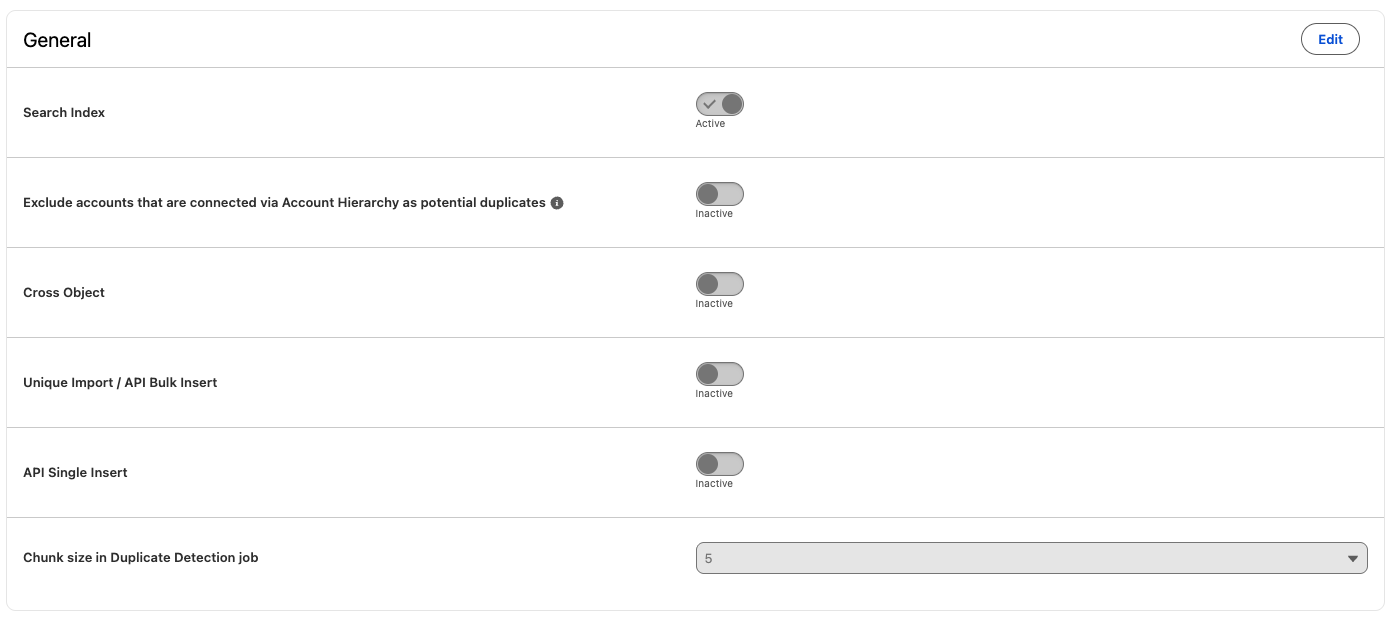
For further customization, scroll down to the Index section (visible after enabling Search Index).
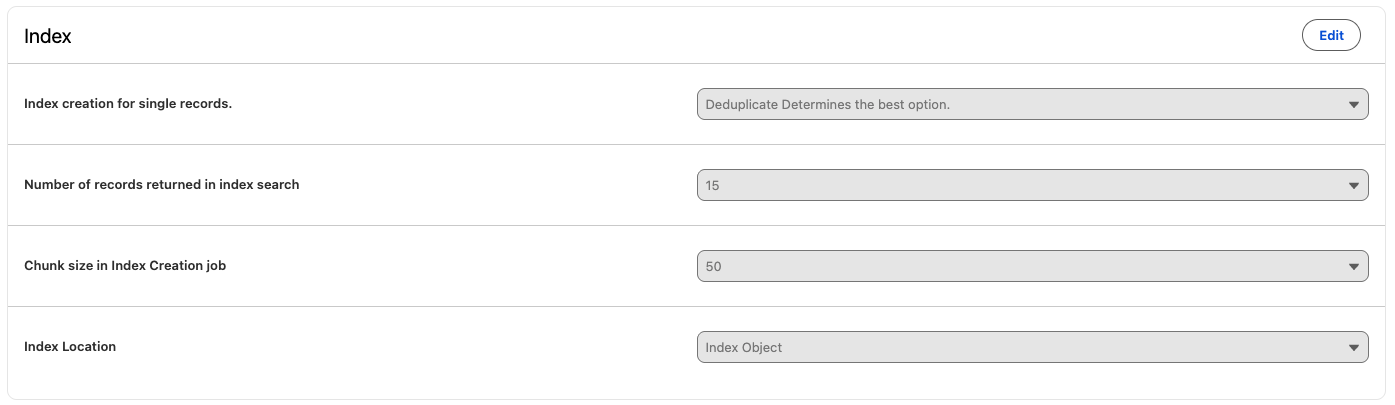
| Index Creation for single records | Determines when the Index creation will start. You can let PD decide when by choosing: "Deduplicate Determines the best option" - Plauti Deduplicate decides when the index is updated. "Directly. Index is directly available" - The index is updated right away. "In the background. There is a delay in Index creation" - Index is updated in an apex job, started whenever Salesforce allows it to start. |
| Number of records returned in index search | Decides how many records Plauti Deduplicate returns in the first step of the search procedure. Do not change this, unless you get instructions from the Plauti Support team. |
| Chunk size in Index Creation job | Determines the chunk size of the index creation job. Do not change this, unless you get instructions from the Plauti Support team. |
| Index location | The location where the Search Index will be stored (see below). |
Search Index Location
You can choose between two options for storing the indexes.
Index Object
The default setting is storing the index in the Index Object. When you create a Search Index, the indexes are stored in a custom object called "Plauti Deduplicate Index" (dupcheck__dcIndex__c).
Select Index Object to use this option.
Each record that is indexed takes 2kb of storage space in the Plauti Deduplicate Index object.
Within the Object itself
Another option is to store the index in the Object itself. This will store the index in a field in your records, which takes no additional storage space. However as a result of updating the search index on the records, the last modified date will change.
For Lead, Contact, or Account, select Lead Object, Contact Object or Account Object to use this option.
For other objects you need to create a Deduplicate Index (dc3Index__c) field first. See Storing the Search Index within your Objects for how to do that.
Please note that if you choose to store the Search Index on the object itself, the "last modified" date of your records will change after creating or updating the search index. This might trigger workflows or other automations you have configured.
Creating the Search Index
To create or re-create the Search Index for an object:
- Go to Deduplicate Setup.
- At left hand, go to Object Configuration, and click Configure on the Object you want to create a Search Index for.
- On the Index Batch tab, click the Action button.
- Select one of the Create Search Index options.
'Create Search Index' will run a search index creation job within Salesforce. 'Create Search Index (Plauti Desktop/Server)' and 'Create Search Index (Plauti Cloud)' will run a search index creation job on one of Plauti's job solutions. Read more below.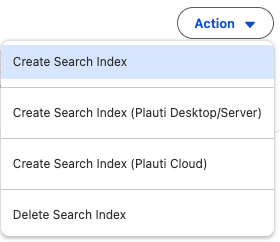
Note: after selecting it may take some time before the Search Index is created.
Incremental indexing
Incremental indexing is only available when the search index is stored in the Index Object, not when the search index is stored within the object itself.
Creating the Search Index on Plauti Desktop, Plauti Server or Plauti Cloud.
For large indexes you can run the search index creation on Plauti Desktop, Plauti Server or Plauti Cloud.
- At 'Action', choose Create Search Index (Plauti Desktop/Server) or Create Search Index (Plauti Cloud).
- Open Plauti Desktop or Server, or log into Plauti Cloud.
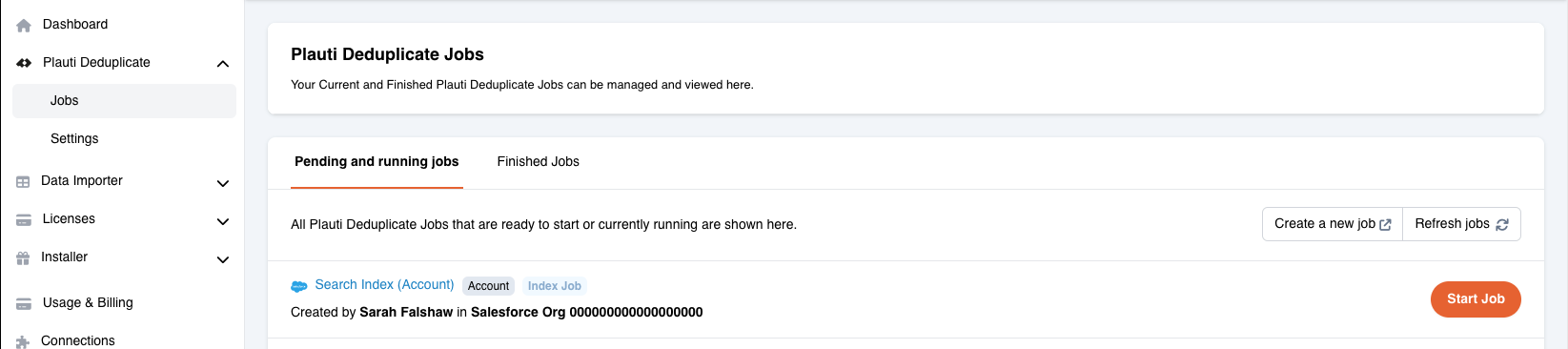
- Go to Jobs > Pending and running.
Search Index jobs are labeled "Index Job". - Click Start Job to start the Search Index job.
Read more in
Create a Search Index for Salesforce with Plauti Cloud
Create a Search Index for Salesforce with Plauti Desktop
Create a Search Index for Salesforce with Plauti Server
Re-creating the Search Index
When making a change to your scenario, be sure to re-create your search index, to ensure the search index is up to date for all records.
Recreating the entire search index is done simply by selecting Create Search Index again. This is recommended for instance after you created a new scenario, made changes to an existing scenario (e.g. a different matching method, new frequent words, or a new field), added or changed an object filter, or changed the index location.
To keep existing search indexes up-to-date, you can create an incremental search index. This option only recreates the search index for those records that were updated after the last full search index creation was started. Incremental search index creation is quicker than a full index re-creation.
The "Create Incremental Search Index" option will appear after a full search index was created, and only when the index is stored on the Index Object (see the "Search Index Location" section above).
To recreate the search index:
- Go to Deduplicate Setup.
- On the left hand side, under Object Configuration, click Configure on the Object you want to create a Search Index for.
- On the Index Batch tab, click the Action button.
- Select one of the Create Search Index or Create Incremental Search Index options.
A search index for all your Objects
It is recommended to create an index for every Object that you work with. Especially when using any custom fields in your scenario, a search index is needed to take them into account when finding duplicates.
Index Example
For example, take a scenario with the fields First Name, Last Name, Email, Phone, City, with an exact match method. A contact with the values Mary, Smith, marysmith@google.com, +1 202 555 0123, Washington will have the following search index string:
12025550123 WASHINGTON SMITH MARY MARY.SMITH@GOOGLE.COM
The components in the search index will look different depending on the matching method selected for a certain field. If the matching method of the First Name and Last Name is 'Person Name', and 'Fuzzy' for City, the search index instead will be:
12025550123 WASHINGTON W252 746536 386426 SMITH S530 463000 862 MARY M600 690000 MARY.SMITH@GOOGLE.COM