Find which Plauti Deduplicate objects use Salesforce storage, and reduce the space they take up.
Plauti Deduplicate stores search indexes, job results, audit logs and temporary data in its own custom objects, and all of these count toward your Salesforce data storage. This article shows which Plauti Deduplicate objects usually take up the most space, and how to reduce each one without losing duplicate detection functionality.
Prerequisites
- You are a Salesforce administrator. Users who are not a Salesforce administrator need the 'Customize Application' system permission to change settings in Deduplicate Setup.
- To delete records directly from a Plauti Deduplicate object, you need a data tool such as Data Loader. For a hard delete, the user also needs the 'Bulk API Hard Delete' permission.
Finding which Plauti Deduplicate objects use the most storage
Each Plauti Deduplicate object grows for a different reason, so check which one takes up little or more space before you start cleaning up.
- Go to Salesforce Setup > Storage Usage.
- In the list of objects, look for the objects whose names start with "Plauti Deduplicate".
The following Plauti Deduplicate objects often increase in storage usage:
| Object | What it stores | How to reduce it |
| Plauti Deduplicate Index | The search index: one index record per indexed Salesforce record, about 2 KB each. | Store the search index on the object itself. |
| Plauti Deduplicate Duplicate and Plauti Deduplicate Group | The duplicate pairs and groups found by Deduplicate Jobs. | Merge the duplicates or delete the jobs. |
| Plauti Deduplicate Audit | The audit log of merges and other Plauti Deduplicate actions. It keeps growing while Audit Logging is on. | Delete older audit records. |
| Plauti Deduplicate Temp File | Information about how the product is used, without user details. It should normally stay small. | Remove the temporary files. |
Read what every Plauti Deduplicate object does, and which ones you must not delete, in Deduplicate Objects and their use.
Storing the search index on the object itself
When you use Matching Methods other than 'Exact', Plauti Deduplicate needs a Search Index. You choose per object where Plauti Deduplicate stores it: in the Index Object (a custom object that Plauti Deduplicate creates) or within the object itself. For objects with many records, moving the index out of the Index Object usually saves the most storage.
Index Object (takes storage space)
Storing the Search Index in the Index Object uses 2 KB of storage per indexed record. For example, 250,000 Accounts use 250,000 × 2 KB = 500 MB. Generating a Search Index in the Index Object does not update the records themselves, so their 'Last Modified Date' does not change.
Within the Object itself (takes no storage space)
Storing the Search Index within the object itself takes no extra storage. However, generating the search index for a record updates the record itself, changing its Last Modified Date.
To store the Search Index within an object other than Lead, Contact or Account, the object first needs a Search Index field. Read how to create it in Storing the Search Index within your Objects.
Records are updated each time they are indexed
When the Search Index is stored within the object, Plauti Deduplicate writes the index to the records whenever it creates or updates the index. This changes the 'Last Modified Date' of the records and can trigger flows, workflows, triggers or integrations on that object. Check your automation and test the change in a sandbox before you make it in production.
To move the Search Index of an object from the Index Object to the object itself:
In Plauti Deduplicate, go to Deduplicate Setup > Object Configuration.
At the object, click Configure.
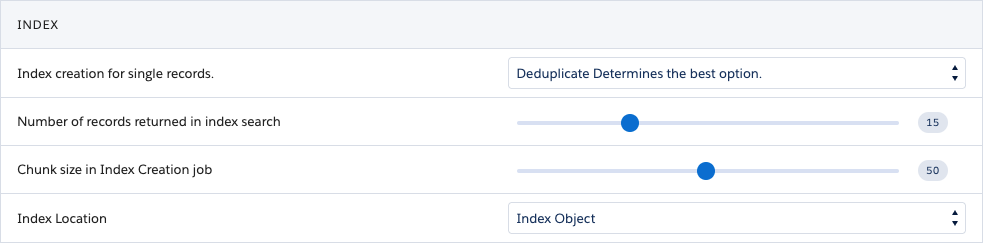
On the Settings subtab, scroll down to the 'Index' section.
Click Edit.
At Index location, select the option that stores the index within the object itself, e.g. "Lead Object" for Leads.
Click Save.
On the Index Batch subtab, click Action.
Select Create Search Index.
For objects with many records, select Create Search Index (Plauti Desktop/Server) or Create Search Index (Plauti Cloud) instead, and start the index job in Plauti Desktop, Server or Cloud.Wait until the index job has finished.
Repeat steps 1 to 8 for every object where you want to move the search index location.
For all objects where you moved the search index location to within the object itself, delete the old index records from the Plauti Deduplicate Index object (
dupcheck__dcIndex__c) with Data Loader or a similar tool. Choose a hard delete, so the records skip the Recycle Bin.
If other objects still store their index in the Index Object, take extra care to delete only the index records of the objects where you changed the index location. Use thedupcheck__objectPrefix__cfield to select them.
Do not use the Delete Search Index action for step 11. It deletes the index at the location that is currently set, which after step 5 is the new index on your records.
If you did use Delete Search Index after all, repeat step 8. 'Create Search Index' again.
After the move, new and changed records still get their index automatically. Create Incremental Search Index is only available when the index is stored in the Index Object, so each later rebuild, for example after a scenario change, is a full index that updates every record of the object. Read more in Search Index.
Do not delete part of the Search Index
The Index Object holds one current index record per indexed record, not a history, so it has no old data to clean up by date. Records whose index record is deleted are no longer found as duplicates in Deduplicate Live, Deduplicate Search or Deduplicate Jobs, and no error warns you. Only delete the index records of an object that you no longer deduplicate, or after you have moved its index to within the object itself.
Deleting Plauti Deduplicate jobs
Deduplicate Job results are stored in the Plauti Deduplicate Duplicate and Plauti Deduplicate Group objects. Once you have reviewed and merged the duplicates in a job, delete the job. Deleting a job removes its stored results. It does not delete your Accounts, Contacts, Leads or other Salesforce records.
You can delete a single job, a selection of jobs, or all jobs that match a filter such as a date range, job type, or whether the job still contains duplicate results. Read how in Deleting Jobs.
Plauti Deduplicate removes the results of a deleted job in the background, and Salesforce can take up to 24 hours to show the lower storage usage. Scheduled jobs add a new run with new results each time they run, so review and delete those runs regularly.
Removing temporary files
The Plauti Deduplicate Temp File object should normally hold only a small number of records. To clear it:
- In Plauti Deduplicate, go to Deduplicate Setup > Settings > General tab.
- At 'Delete Temporary Records', click Start Delete Job.
A background job removes the temporary files. Do not start it while a Deduplicate Job is running.
Deleting older audit records
The Plauti Deduplicate Audit object keeps growing for as long as Audit Logging is on. Decide how much audit history you need, and export the records first if you need them for reporting or compliance.
- To delete all audit records, go to Deduplicate Setup > Audit Logging and click the bin icon at top right.
- To keep recent history, delete only the records older than your chosen date from the Plauti Deduplicate Audit object, for example with Data Loader.
Troubleshooting
Problem:
- I deleted Plauti Deduplicate jobs, but my Salesforce storage usage hardly went down.
- I deleted all Deduplicate Jobs, but the Plauti Deduplicate Duplicate object still holds many records.
Answer:
There are three possible causes. Check them in this order.
- The cleanup is still running. Plauti Deduplicate deletes job results in the background, and Salesforce can take up to 24 hours to recalculate storage usage. Check Salesforce Setup > Storage Usage again the next day.
- The space is used by another object. Deleting jobs only reduces the Plauti Deduplicate Duplicate and Plauti Deduplicate Group objects. If Storage Usage shows that Plauti Deduplicate Index or Plauti Deduplicate Audit uses most of the space, follow Storing the search index on the object itself or Deleting older audit records.
- Duplicate records were left behind. In some orgs, records in the Plauti Deduplicate Duplicate object (
dupcheck__dc3Duplicate__c) remain after their jobs are deleted. If you have no Deduplicate Jobs left, the records indupcheck__dc3Duplicate__c,dupcheck__dcGroup__canddupcheck__dcJob__chave no function, and you can delete them with Data Loader or a similar tool.
Problem:
- The Plauti Deduplicate Delta object (
dupcheck__dcDelta__c) holds a very large number of records and uses a lot of storage. - I receive errors from the Plauti Deduplicate class
dc3SearchBatchDelta, such asAsyncApexExecutions Limit exceeded.
Answer:
The Plauti Deduplicate Delta object holds records that are waiting to be processed for the search index. When these records are not processed, for example because your org is over its data storage limit, the queue keeps growing, and the batch that works through it uses up a large part of your org's daily asynchronous Apex allowance.
The records in the Delta object are queue entries, not business data. To clear the backlog:
- In Data Loader, export the record IDs with
SELECT Id FROM dupcheck__dcDelta__c. - In the Data Loader settings, select Use Bulk API.
- Run a Hard Delete on
dupcheck__dcDelta__cwith the exported file. - Go to Salesforce Setup > Storage Usage and check that your data storage usage is below 100%.
- In Deduplicate Setup, create the Search Index again for each object that uses one, one object at a time.
- Run a Deduplicate Job on the affected objects, filtered on records created since the date of the oldest Delta record you deleted. Those records were never checked for duplicates. For large objects, run the job in Plauti Desktop, Plauti Server or Plauti Cloud, so it does not run into the same asynchronous Apex limits.
If you need help finding out what uses the storage in your org, contact Plauti Support.